A Large Language Model (LLM) is a relatively new branch of artificial intelligence that is fed a significant amount of text, images and audio so that it can perform 'smart' tasks like text, image and audio generation based on trained data and user input. LLMs support several use-cases like reviewing texts and code and generating visual art to name a few.
Like any new technological innovation, corporations offer 'freemium' LLMs, like ChatGPT or Claude, to gather mass adoption. Underneath this seemingly kind gesture, your prompts have to be sent to their proprietary servers in order to get a response from the model - no questions asked. History has proven, time and time again, that profit-driven steering always comes at the cost of user privacy - if it is free, you are the product - which is why more people need to start using LLMs locally.
This note walks you through how to setup an LLM client and use models locally (and offline) so that your data never leaves your device.
##Getting Started
Important: To run an LLM comfortably, you will need a device with at least 16GB RAM and 32GB of storage although I have read that you can run models on a raspberry pi so anything is possible.
To start running models locally, you will need to install an LLM client (from now on, just 'client') and a model. A client is an application that lets you interact with LLMs on your local machine. Clients abstract a lot of complexities like resource management, downloading models, and serving endpoints for integrating models into other applications like the Continue extension on VsCode. Simply put, clients let you run models.
###Installing a client
You'll need to install the Ollama client to play around with models. Ollama offers the following features that make it a great starter client in my opinion:
- open-source
- chat GUI
- server for API endpoints
- supports linux, macos and windows
- large community = help with questions
There are several alternative clients like LM Studio and Jan which are also worth looking into.
###Installing a model
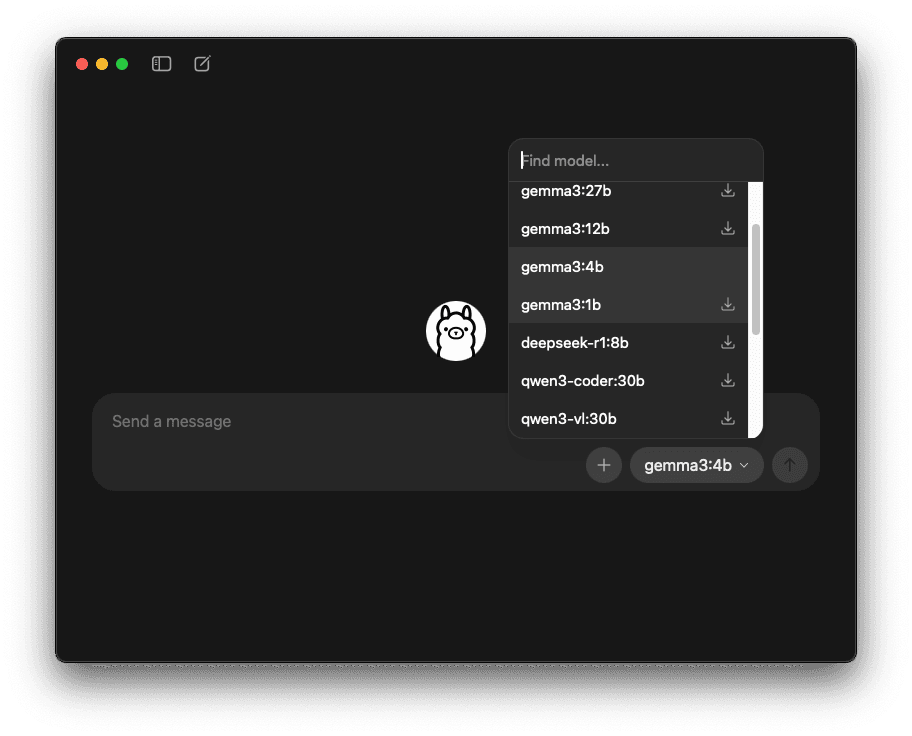
The easiest way to install a model is via the Ollama GUI:
- Open Ollama
- Select the model dropdown
- Paste 'gemma3:4b' in the search field
- Select 'gemma3:4b' or the download icon next to it
Tip: Ollama also supports models from Hugging Face. Run
ollama pull hf.co/google/gemma-3-4b-itto install the model that you cannot find in the Ollama registry.
To install a model with the CLI tool, run the following command in your terminal:
ollama pull gemma3:latest

# for a specific set of parameters
ollama pull gemma3:4b####Selecting a model
A model is like a 'brain' that has been trained (fed with some data and modeled, statistically, to produce some expected output). Some models are generalists (trained with a diverse set of data) and others are specialized which has an impact on the breadth of knowledge a model may have and/or the expertise that it is able to provide. Some models can only interpret (or generate) text while others support images and video. We live in amazing time.
Practically speaking, the most important thing to consider when looking for a model is how many parameters it has - the more parameters a model has, the better the response (more accurate statistical results) and the more resource intensive (i.e. ram, cpu and energy).
I personally like the google/gemma-3 family of models listed in the table below because they tend to provide more direct responses. I also enjoy the Qwen/Qwen2.5-Coder-7B-Instruct-GGUF model for coding - the qwen family is more 'bang for buck'.
| model | parameters (billion) | size (GB) | context | supports |
|---|---|---|---|---|
gemma3:1b | 1 billion | ~815 MB | 32K | text |
gemma3:4b | 4 billion | ~3.3 GB | 128K | text, image |
gemma3:12b | 12 billion | ~8.1 GB | 128K | text, image |
gemma3:27b | 27 billion | ~17 GB | 128K | text, image |
qwen3:1.7b | 1.7 billion | ~1.4 GB | 40K | text |
qwen3:4b | 4 billion | ~2.5 GB | 256K | text |
qwen3:14b | 14 billion | ~9.3 GB | 40K | text |
qwen3:30b | 30 billion | ~19 GB | 256K | text |
##Usage
Once you have installed a client and selected a model, you can start using it in through the client's GUI, CLI or API Server (most clients offer all three interfaces).
###GUI
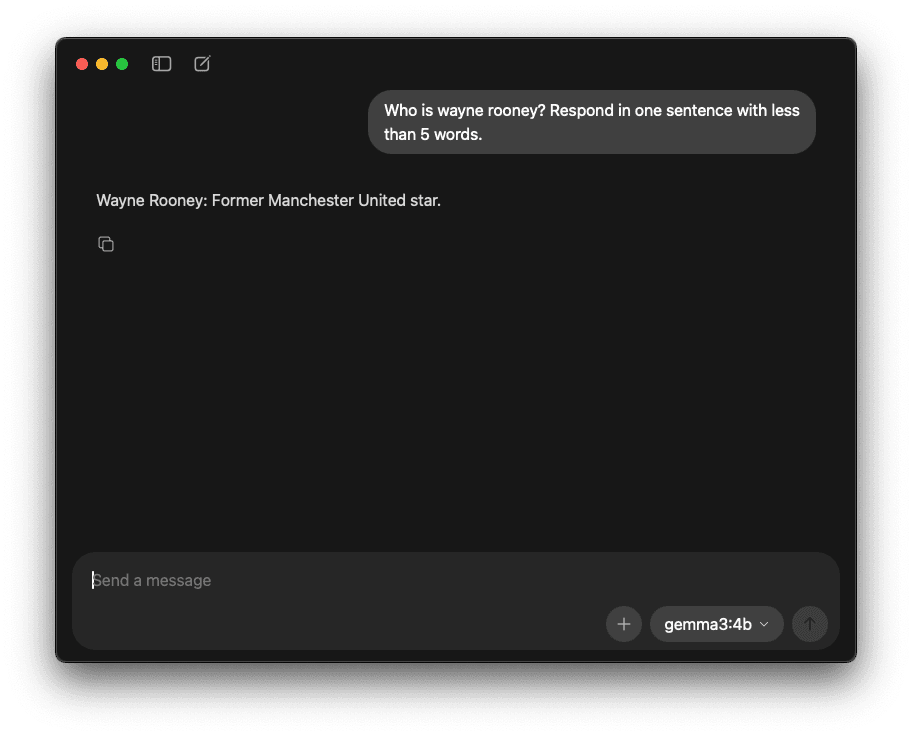
The easiest way to start using a model on Ollama is to start chatting with the Graphical User Interface (GUI):
- Open Ollama
- Select 'new chat'
- Start chatting
###CLI
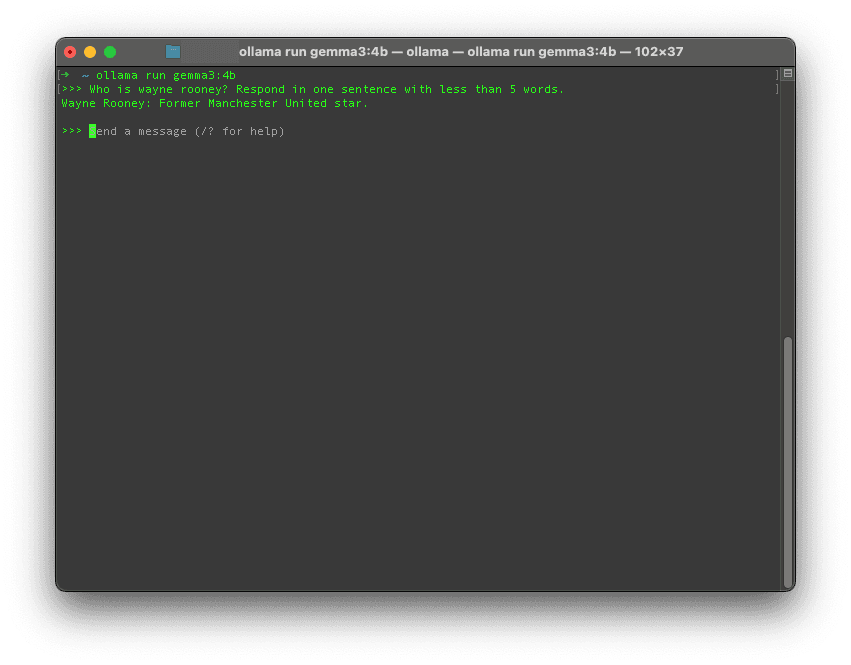
To run the model with the command line interface (CLI), open a terminal and enter the following command:
# open a chat
ollama run gemma3:latest

# directly prompt
ollama run gemma3:4b "Who is wayne rooney? Respond in one sentence with less than 5 words."
To leave an interactive chat session, enter /bye.
###API Server
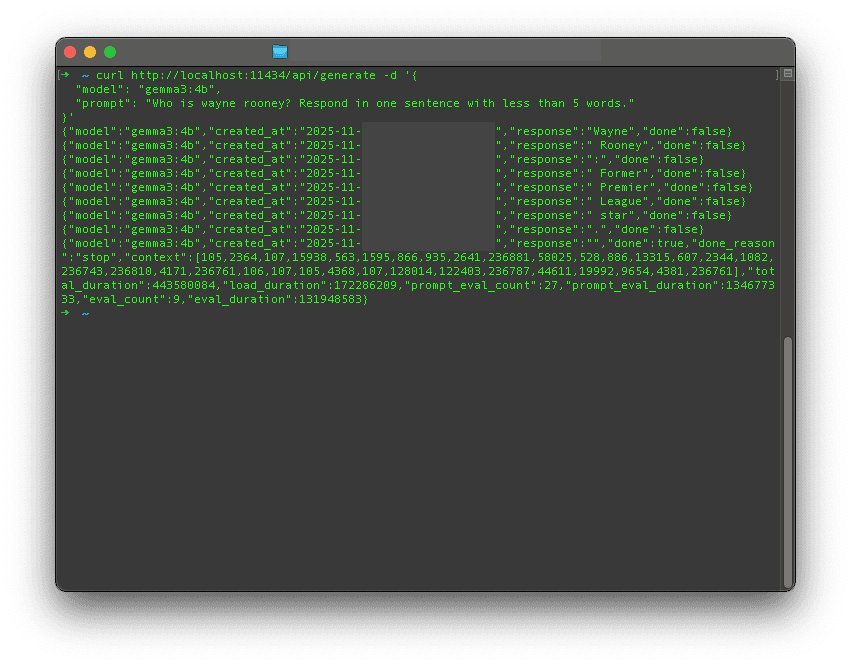
Start the server:
ollama serveIn another terminal, send a prompt request to the server:
curl http://localhost:11434/api/generate -d '{
  "model": "gemma3:4b",
  "prompt": "Who is wayne rooney? Respond in one sentence with less than 5 words."
}'
You should get the following response (or something similar):
{"model":"gemma3:4b","created_at":"2025-10-xxThh:mm:ssZ","response":"Wayne","done":false}
{"model":"gemma3:4b","created_at":"2025-10-xxThh:mm:ssZ","response":" Rooney","done":false}
{"model":"gemma3:4b","created_at":"2025-10-xxThh:mm:ssZ","response":":","done":false}
{"model":"gemma3:4b","created_at":"2025-10-xxThh:mm:ssZ","response":" Former","done":false}
{"model":"gemma3:4b","created_at":"2025-10-xxThh:mm:ssZ","response":" Manchester","done":false}
{"model":"gemma3:4b","created_at":"2025-10-xxThh:mm:ssZ","response":" United","done":false}
{"model":"gemma3:4b","created_at":"2025-10-xxThh:mm:ssZ","response":" star","done":false}
{"model":"gemma3:4b","created_at":"2025-10-xxThh:mm:ssZ","response":".","done":false}
{"model":"gemma3:4b","created_at":"2025-10-xxThh:mm:ssZ","response":"","done":true,"done_reason":"stop","context":[105,2364,107,15938,563,1595,866,935,2641,236881,58025,528,886,13315,607,2344,1082,236743,236810,4171,236761,106,107,105,4368,107,128014,122403,236787,44611,19127,3640,4381,236761],"total_duration":1587509625,"load_duration":1183902834,"prompt_eval_count":27,"prompt_eval_duration":234446208,"eval_count":9,"eval_duration":131495834}